How to Embed Your Church Live Stream on Your Website
Three ways to get your church live stream on your website: manual embeds, church platform widgets, and one-time embed tools. Compare the pros, cons, and setup steps for each method.
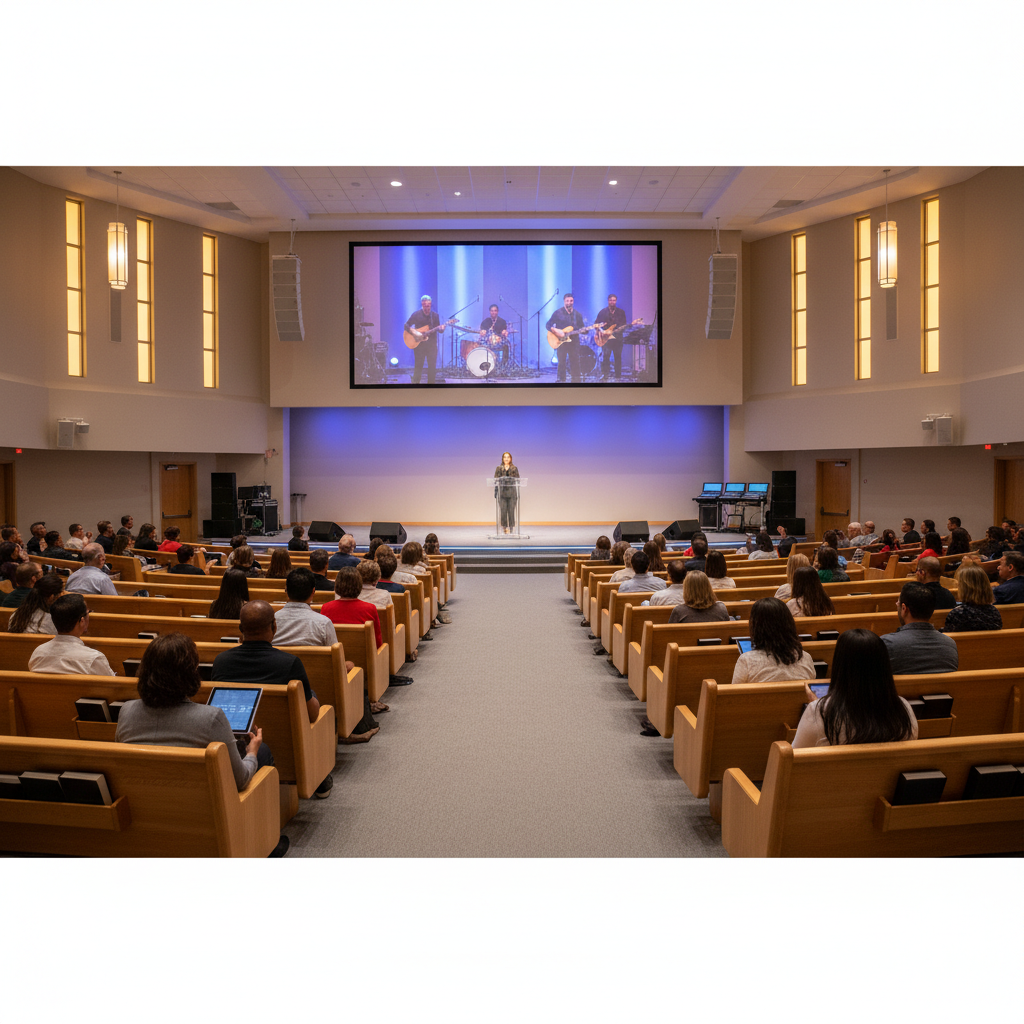
Your church streams every Sunday on Facebook or YouTube. But what about the members who don't have a Facebook account? Or the first-time visitors browsing your website to see what your church is all about?
If you want to embed your church live stream on your website, you're not alone. Thousands of churches face this exact challenge every week. The good news: there are several ways to do it, and one of them takes about three minutes to set up and never needs touching again.
This guide walks you through three different approaches to getting your live stream on your church website, from free manual methods to fully automated tools. You'll learn the pros and cons of each so you can pick the right fit for your church.
Why Your Church Needs a Live Stream on Its Website
Before we get into the how, here's why this matters.
83% of visitors check a church's website before attending in person. If your website just has service times and an address, you're missing a huge opportunity. A live stream gives first-time visitors a low-pressure way to experience your worship before walking through the door.
There's also the reality that roughly 30% of your congregation may not have Facebook accounts. They're missing your streams entirely, even though they want to watch. Putting your live stream on your website reaches everyone, regardless of which social platforms they use.
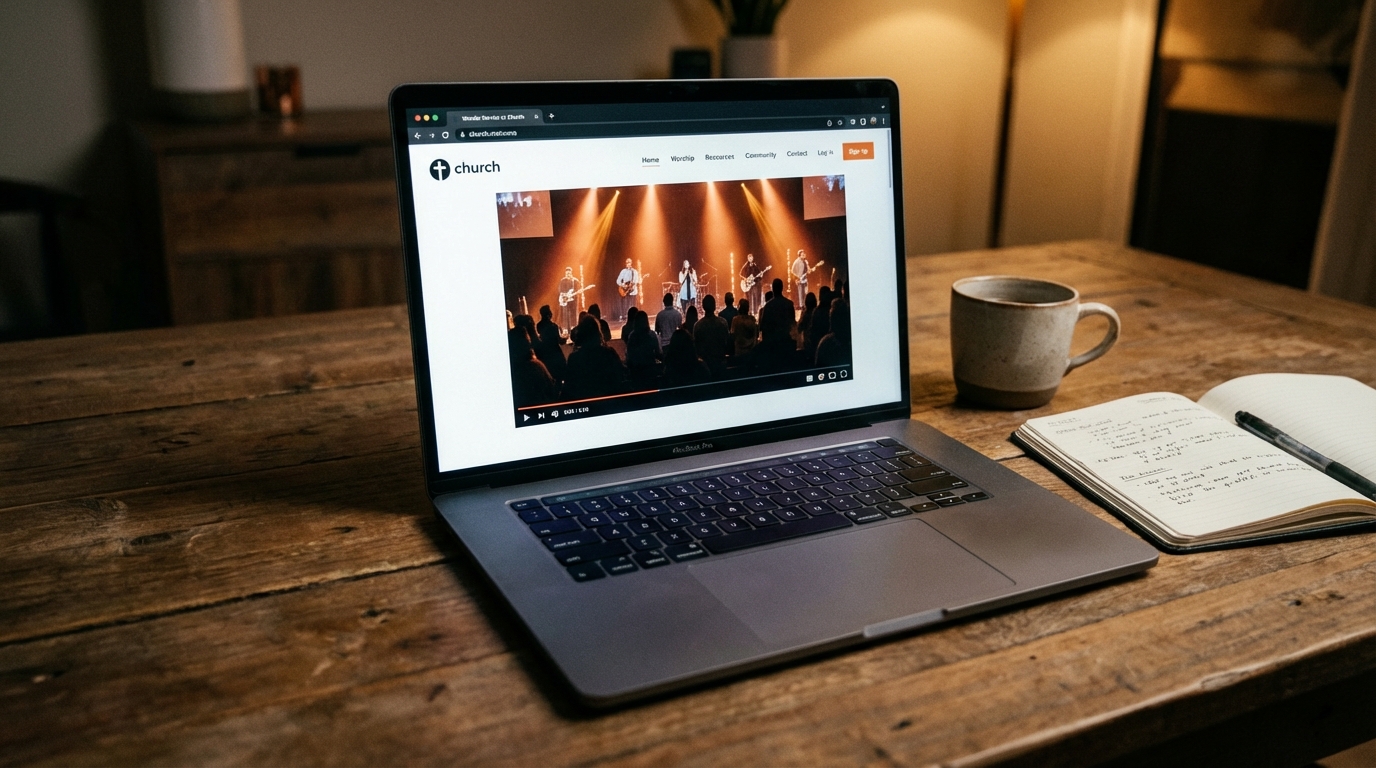
And here's a practical benefit: your website is distraction-free. When someone watches on Facebook, they're one notification away from scrolling their feed instead. On your website, the focus stays on your service.
Did you know: Churches that stream on their website see up to 70% more online donations compared to those that only stream on social media. Your website keeps the audience closer to your giving page, event calendar, and visitor info.
Church Streaming in 2026: The Hybrid Model Is Here to Stay
The pandemic didn't create online church — it accelerated what was already happening. And the data is clear: the hybrid model isn't going anywhere.
Pew Research found that 40% of U.S. adults who attend religious services also watch online, even when they could attend in person. That's not a substitute for in-person worship — it's an extension of it. Members watch the sermon again during the week, share it with family in other states, or catch up when they're traveling.
Barna Group research confirms that churchgoers now expect a digital option. For younger generations especially, a church without an online presence feels incomplete.
This shift matters for how you think about your website. Your church live stream page isn't a "nice to have" anymore — it's a front door. Multi-campus churches use a single website widget to serve three, five, even ten locations simultaneously. Smaller churches use it to stay connected with homebound members and military families stationed overseas.
The question isn't whether to stream on your website. It's how to do it without adding more work to your already-stretched volunteer team.
Method 1: Manual Embed Codes (Free but Tedious)
This is the most common approach, and it costs nothing. You grab the embed code from YouTube or Facebook and paste it into your website.
How Manual Embedding Works
- Go live on YouTube or Facebook as usual
- Copy the iframe embed code from the video
- Paste it into your website's HTML (or a code block in WordPress, Squarespace, etc.)
- Your stream appears on your site
The Problem with Manual Embeds
Here's the problem every church tech volunteer knows too well: the embed code changes every single time you go live. That means someone has to update the website before every service. Every Sunday morning. Every Wednesday night. Every special event.
For the volunteer running your church's tech, that's 5 to 15 minutes of stress before every stream starts. And if they're running late, or sick, or on vacation? The website shows last week's video (or nothing at all).
Important: Facebook generates a brand-new video URL every time you go live. There's no way around this with manual embeds. If you stream weekly, that's 52 embed code updates per year, each one a potential point of failure.
Pros:
- Free
- Works on any website
- No third-party tools required
Cons:
- Must update the embed code before every stream
- Creates recurring Sunday morning stress
- If the volunteer forgets, the stream doesn't show
- YouTube requires 1,000 subscribers for live stream embedding
For a deeper comparison, check out our EmbedVidio vs Manual Embeds page.
Method 2: Church Platform Widgets (Platform-Locked)
Several church website platforms include built-in live stream embedding. If you already use one of these platforms, this might work for you.
Popular Church Platform Options
- Church Online Platform supports embed codes from YouTube, Facebook, Twitch, and Vimeo. You paste the embed code once per service into their admin dashboard.
- Subsplash lets you embed scheduled live streams with a share URL or embed code. Requires advance scheduling for the embed preview to appear.
- ChurchSpring connects to your Facebook or YouTube channel URL and shows a countdown clock when services are less than 48 hours away.
- BoxCast provides its own video player that integrates with Church Online Platform, with optional countdown timers and pre-event content.
The Limitation of Platform Widgets
These tools are tied to specific church website platforms. If your website runs on WordPress, Squarespace, Wix, or Shopify, these aren't an option. Most also still require some manual setup for each stream.
Pros:
- Integrated into the church platform you already use
- Some offer countdown timers and live chat features
- Support docs written specifically for churches
Cons:
- Only works if you use that specific platform
- Most still require per-stream setup
- Switching platforms means starting over
- Limited customization options
Method 3: Auto-Embed Tools (Set It and Forget It)
Auto-embed tools detect when you go live on Facebook, YouTube, or Twitch and automatically start streaming to your website. No code changes. No Sunday morning scramble.
How Auto-Embed Works
- Connect your Facebook Page, YouTube channel, or Twitch account
- Copy one embed code and paste it on your website
- That's it. Seriously.
When you go live on any connected platform, the widget detects it within seconds and starts playing the stream on your site. When you're offline, it shows your saved videos or a custom placeholder image.
The embed code never changes. You set it up once and it works every week, for every stream, without anyone touching the website.
Pro tip: Auto-embed tools also handle the offline state gracefully. Instead of showing a blank or broken player when you're not streaming, your website displays your most recent saved videos or a custom placeholder image. Your site always looks professional.
Real Churches Using Auto-Embed
EmbedVidio is built specifically for this. Churches like Heritage Presbyterian Church, Catholic Church of The Holy Trinity, and Pathway Community Church use it to automate their weekly streams. Here's what they say:
"EmbedVidio automated the process for our church and took away the last minute stress on Sunday Mornings!" - Hope Vernon, Hope Christian Church
"Before EmbedVidio, I had to manually add the embed code every time. This was too much work in a short time before the event began. Now I don't have to worry about it." - Silvio Miranda, Catholic Church of The Holy Trinity
If you're looking for the best church live stream widget, EmbedVidio is purpose-built for exactly this.
Pros:
- One-time setup, no weekly maintenance
- Works on any website (WordPress, Squarespace, Wix, Shopify, Weebly, custom)
- Auto-detects live streams from Facebook, YouTube, and Twitch
- No page refresh needed for viewers
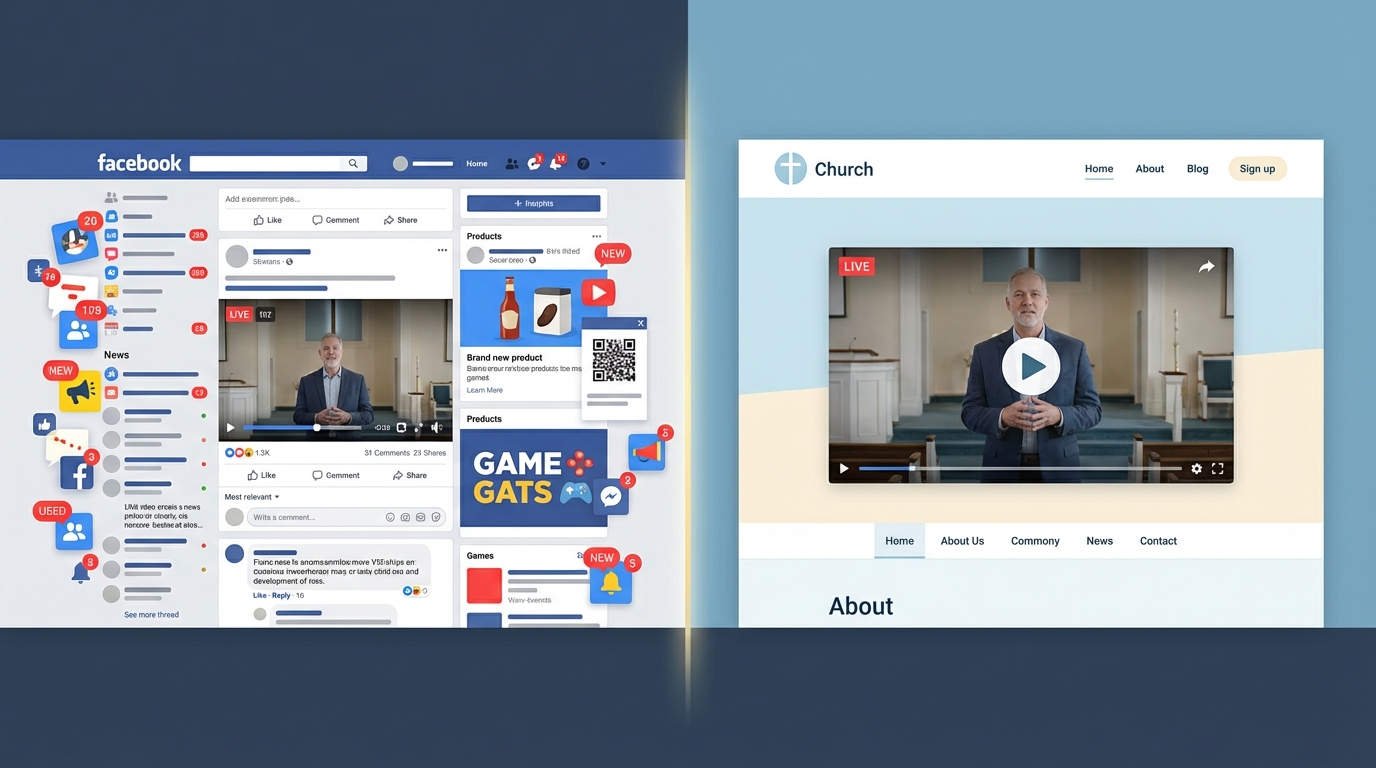
- Distraction-free viewing (no social media UI around the player)
- Affordable (starting at $9/month, or $7/month billed yearly)
Cons:
- Monthly subscription cost
- Requires an internet connection (obviously)
For comparisons with other tools, see EmbedVidio vs SociableKIT and EmbedVidio vs BoxCast.
Comparing All Three Methods
Here's a side-by-side look at the three approaches:
| Feature | Manual Embeds | Church Platforms | Auto-Embed (EmbedVidio) |
|---|---|---|---|
| Cost | Free | Varies by platform | Starting at $9/month |
| Setup time | 5-15 min per stream | Varies | 3 minutes (once) |
| Weekly maintenance | Every stream | Most streams | None |
| Works on any website | Yes | No (platform-locked) | Yes |
| Auto-detects live | No | Rarely | Yes |
| Page refresh needed | Yes | Sometimes | No |
| Distraction-free | Depends on source | Usually | Yes |
| Facebook support | Yes | Some | Yes |
| YouTube support | Needs 1K subs | Some | Yes |
| Twitch support | Yes | Rarely | Yes |
How to Set Up EmbedVidio on Your Church Website
If the one-time embed approach sounds right for your church, here's the quick setup:
Step 1: Create Your Account
Sign up for a free 7-day trial (no credit card required). You'll get access to all features immediately.
Step 2: Connect Your Streaming Platform
In your dashboard, connect your Facebook Page, YouTube channel, or Twitch account. This gives EmbedVidio permission to detect when you go live.
Step 3: Copy Your Embed Code
EmbedVidio generates a single embed code for your widget. Copy it once.
Step 4: Paste It on Your Website
Add the embed code to your church website. Here's how for the most popular platforms:
- WordPress: Add a Custom HTML block and paste the code
- Squarespace: Use a Code Block in your page editor
- Wix: Add an HTML Embed element
- Shopify: Paste into a Custom Liquid section
- Any other site: Paste into any HTML editor or code section
That's the entire setup. The next time you go live on Facebook, YouTube, or Twitch, your website will automatically start streaming. No more Sunday morning stress.
Platform-Specific Tips for Church Streaming
Facebook Live
Facebook is the most popular streaming platform for churches (83% of churches use it). For a dedicated guide, see our Facebook Live embed page. When embedding Facebook live streams manually, keep in mind that Facebook generates a new video URL for each stream. This is the #1 reason churches switch to one-time embed tools.
Facebook's embed player also includes their UI elements (like, share, comment buttons). An one-time embed tool like EmbedVidio strips that away for a cleaner viewing experience on your site.
YouTube Live
YouTube requires your channel to have 1,000 subscribers before you can use their embed player for live streams. If your church channel doesn't meet that threshold yet, you can still stream to YouTube and use EmbedVidio to embed it on your website without that restriction. Learn more on our YouTube Live embed page.
Quick note: Many small churches stream on YouTube but can't embed the live player because of the 1,000 subscriber requirement. EmbedVidio bypasses this restriction entirely, so your subscriber count doesn't matter.
Twitch
Twitch is less common for churches but growing in popularity for youth ministry streams, special events, and gaming-related church outreach. The embed process is straightforward on any platform.
Multi-Platform Streaming
Many churches stream to Facebook and YouTube simultaneously to reach the widest audience. If your church uses a multi-streaming setup through tools like Restream, OBS Studio, or StreamYard, you might wonder how to show both feeds on your website.
With a manual embed approach, you'd need two separate embed codes — and you'd have to update both of them every week. With EmbedVidio, you connect both your Facebook Page and YouTube channel to a single widget. The widget automatically detects whichever platform goes live first and displays that stream. If you're live on both, it prioritizes based on your settings.
This means one widget, one embed code, and full coverage across platforms. Your congregation sees your live stream regardless of where you're broadcasting, and you don't have to manage multiple players on your website.
Tips for a Great Church Live Stream Experience
Getting the stream on your website is just the first step. Here are a few tips to make the experience great for your viewers:
Put the stream front and center. Don't bury it three clicks deep. Add it to your homepage or create a dedicated "Watch Live" page linked from your main navigation.
Add service times. Let visitors know when to tune in. A simple "Watch us live every Sunday at 10am" above the player goes a long way.
Keep your recordings available. After the stream ends, make sure past services are easy to find. Many viewers watch the recording later in the week.
Test before Sunday. Do a quick test stream on a weekday to make sure everything works. This is especially important the first time you set up any new embed method.
Tell your congregation. Not everyone knows they can watch on the website. Add it to your weekly announcements, email newsletter, and social media posts.
Make it accessible to everyone. Accessibility matters for church streams. Both Facebook and YouTube offer automatic captions on live video, and those captions carry through to embedded players and widgets. This is essential for deaf and hard-of-hearing members of your congregation. If your church creates its own caption files, YouTube lets you upload them after the stream for your recorded videos. For more on web accessibility best practices, see the W3C Web Accessibility Initiative (WAI) guidelines.
Troubleshooting Common Church Live Stream Embed Issues
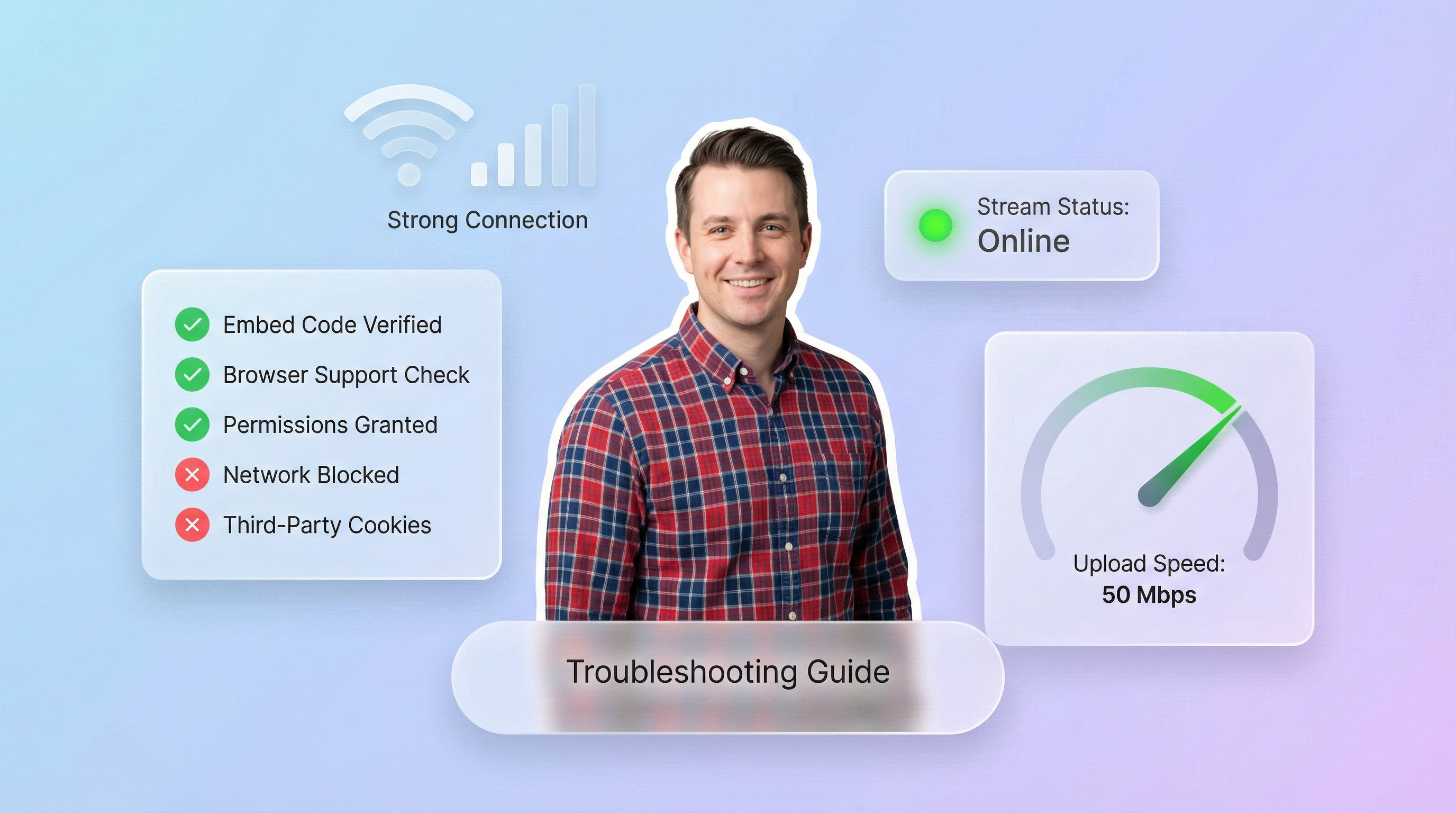
Even with the best setup, things occasionally go sideways. Here are the most common issues churches run into and how to fix them.
Stream Isn't Showing on the Website
If your live stream isn't appearing, start with the basics. Confirm you're actually live on Facebook or YouTube — it sounds obvious, but scheduling errors happen. Next, check that the embed code is still on your page (website updates or theme changes can sometimes remove code blocks). If you're using a manual embed, verify the embed code matches your current stream URL. For auto-embed widgets like EmbedVidio, check your dashboard to make sure your social account is still connected; occasionally, Facebook or YouTube token refreshes can disconnect the link.
Live Stream Has a Delay
A 10-to-30-second delay between your live broadcast and what viewers see on the website is normal. This is introduced by the streaming platform itself (Facebook and YouTube both buffer the feed), not by the embed method. You can reduce it slightly by choosing "Low Latency" mode in your streaming platform's settings, but some delay is unavoidable with any browser-based live stream. Plan for this during interactive moments like live prayer requests.
Video Quality Is Poor or Buffering
Poor video quality is almost always a bandwidth issue at the source. Your church's upload speed should be at least 10 Mbps for a reliable 1080p stream (5 Mbps minimum for 720p). Run a speed test at the streaming location before Sunday. Also check that no one else on the church network is running large downloads or updates during the stream. If viewers report buffering on their end, that's their internet connection — the embed itself doesn't affect playback quality.
Get Your Church Live Stream on Your Website Today
Your congregation shouldn't have to juggle Facebook accounts just to watch a Sunday service. And your tech volunteer shouldn't have to stress over embed codes every week.
If you want the simplest path to getting your church live stream on your website, start a free trial with EmbedVidio. Setup takes minutes, and you'll never have to update an embed code again.
For churches that prefer the manual approach, the steps above will get you started. Just remember to block out a few minutes before every stream to swap that code.
Whichever method you choose, the important thing is making your services accessible to everyone, on your own website, on your own terms.
Frequently Asked Questions
Do I need to update the embed code every time I go live?
With manual embeds, yes. Facebook and YouTube generate new video URLs for each stream, so you need to update the code before every service. Auto-embed tools like EmbedVidio use a permanent embed code that never changes.
Does my YouTube channel need 1,000 subscribers to embed live streams?
YouTube requires 1,000 subscribers for their native live stream embed player. However, auto-embed tools like EmbedVidio bypass this requirement entirely, so your subscriber count does not matter.
Will the live stream work on my WordPress or Squarespace site?
Yes. Manual embed codes and auto-embed tools like EmbedVidio work on any website that supports HTML or code blocks, including WordPress, Squarespace, Wix, Shopify, and Weebly.
What happens on my website when we are not streaming?
With manual embeds, the page may show a broken or outdated player. Auto-embed tools like EmbedVidio display your saved videos or a custom placeholder image when you are offline, so your site always looks professional.
How much does it cost to embed a church live stream on a website?
Manual embed codes are free but require weekly updates. EmbedVidio starts at $9 per month (or $7 per month billed yearly) with a free 7-day trial and no credit card required.
Can I stream to Facebook and YouTube at the same time?
Yes. Many churches use multi-streaming tools like Restream or OBS Studio to broadcast to both platforms simultaneously. EmbedVidio supports connecting both your Facebook Page and YouTube channel to one widget, so it automatically detects whichever platform goes live and displays the stream on your website.
How do I add captions to my church live stream embed?
Facebook and YouTube both generate automatic captions on live video, and those captions carry through to embedded players and widgets. For recorded videos, YouTube also lets you upload custom caption files after the stream ends. No extra setup is needed on the embed side.
What internet speed does my church need?
For a reliable 1080p live stream, your church needs at least 10 Mbps upload speed. For 720p, 5 Mbps is the minimum. Run a speed test at your streaming location before Sunday and make sure no other devices on the network are using heavy bandwidth during the service.
Written by
EmbedVidio Team
Related Articles
 Church Streaming
The Best Church Live Stream Widget for Your Website
Your church already streams on social media. A live stream widget puts that video on your website automatically, reaching members who aren't on Facebook and removing Sunday morning stress.
11 min read Platform Guides
How to Embed Facebook Live on Your Website
Facebook generates a new embed code every time you go live. Learn how to embed Facebook Live on your website with a one-time setup that works on any platform.
9 min readReady to embed live streams on your website?
Start your free trial today. One-time setup, no coding required.
Start Free Trial